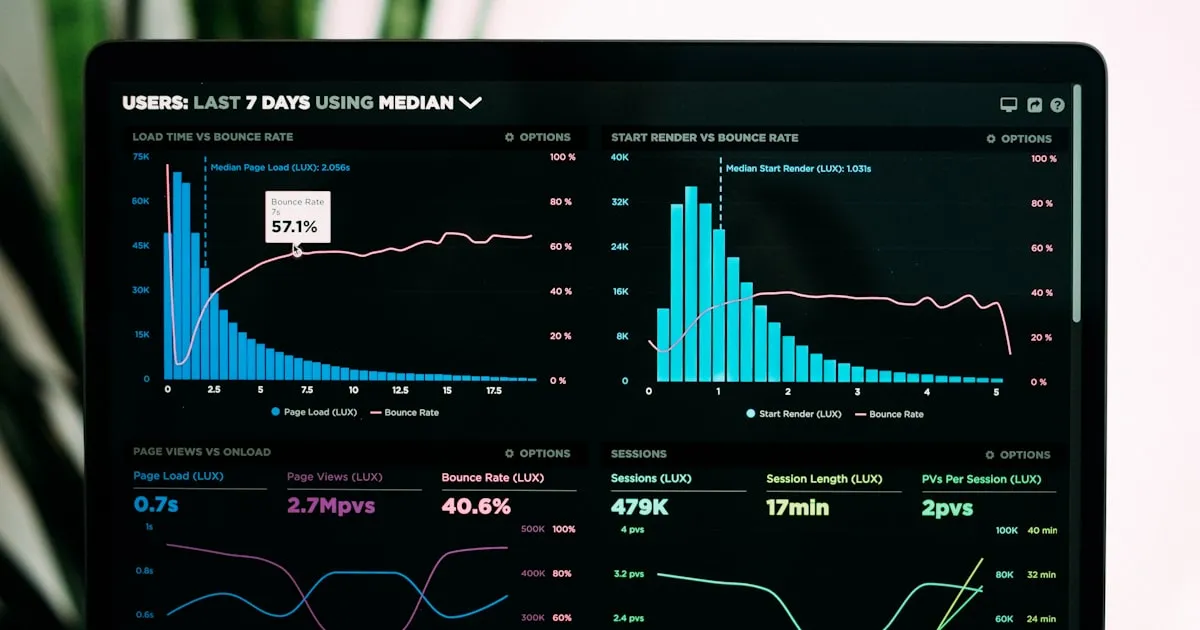
Why Shopify Analytics Still Shows Sessions From Blocked Countries
You blocked a country, but Shopify Analytics still shows visits from there. Here's what's actually happening, why it's not a bug, and how to verify the block is working.
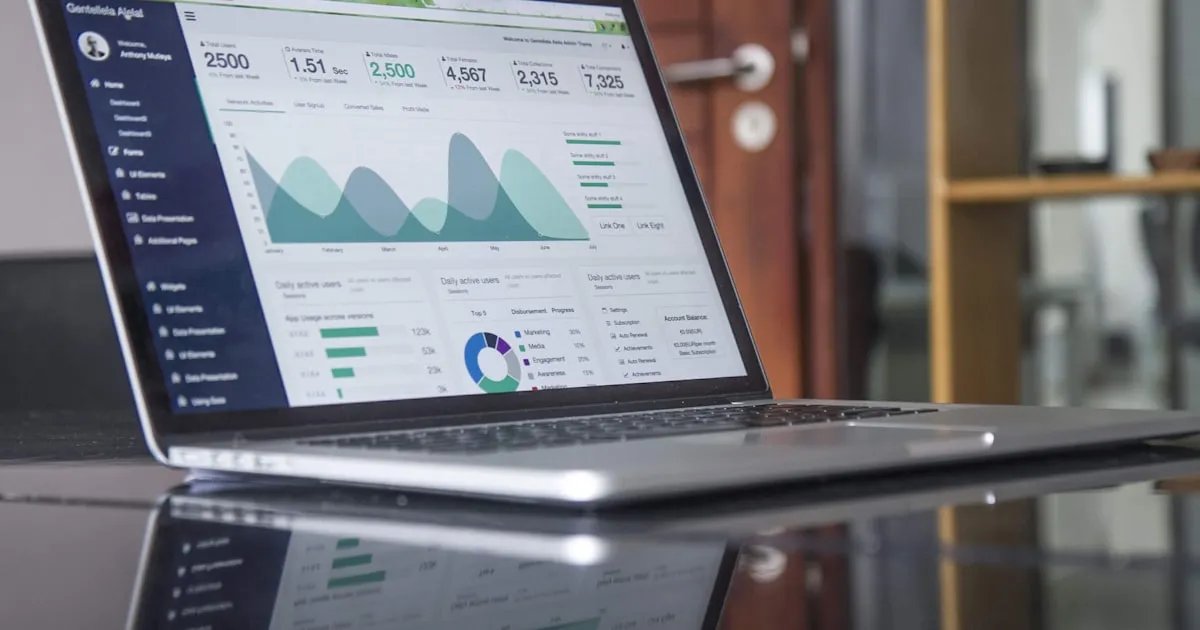
A common merchant question after deploying country-level blocking: "Why am I still seeing sessions from {blocked country} in my Shopify Analytics and Google Analytics?"
The question is reasonable. You blocked the country; the system should have stopped traffic from there; the analytics should reflect that.
Except they don't, and the reasons are baked into how the analytics and blocking layers work. This guide unpacks what you're actually seeing, why it happens, and what it means for measuring whether your blocking is effective.
What you're actually seeing
When Shopify Analytics or Google Analytics shows sessions from a country you've blocked, several different things might be happening:
Cached or pre-block visits
If the block was activated yesterday and your analytics is looking at the last 30 days, the report includes visits from before the block was in place. Pre-block sessions are real history, not a current leak. As the block ages, historical sessions age out of the window.
Blocked requests that still got counted
Some analytics setups count any incoming request, including those that received a blocking page. The session is "tracked" because the analytics script runs before the blocking decision propagates, or because the analytics tracks at a layer above the block. Session appears in the count even though no real engagement happened.
Visitors from blocked country who reached you through other paths
A visitor in the blocked country might appear in your analytics because they:
- Used a VPN to access your store (apparent country is the VPN exit, not real country — but might still report as blocked country in some sources)
- Accessed your store through a cached page from a search engine
- Loaded your store through an embed on another site
- Visited through a partner's site that displays your content
In each case, the visit is real, but the blocking system either didn't apply or didn't apply at the layer the analytics tracks.
Geolocation database disagreement
Different analytics systems use different geolocation databases. Your fraud app's geolocation might say "this IP is in country X" while Google Analytics or Shopify Analytics says "this IP is in country Y." The block fires correctly based on your fraud app's view; the analytics shows the country differently.
Crawler and bot traffic
Some bot or crawler traffic gets counted as sessions even when blocked. Block fires; response is a blocking page; analytics records the request as a session anyway. Traffic isn't real customer interest, but shows up in the report.
Is the block actually working?
A few diagnostic checks tell you whether your block is firing correctly:
Check session-to-engagement ratio
Blocked sessions show as visits but rarely as engaged sessions (no scroll, no clicks, no time on site). If sessions from the blocked country exist but they all show 0-second engagement, the block is working — visits are tracked but customers aren't experiencing your store.
Check conversion ratio
Blocked-country orders should be near zero. If your analytics shows 50 sessions from the blocked country and 0 orders, that's consistent with the block firing correctly — visits arrive but no one can complete a purchase.
Check the actual blocking response
Use a VPN connection to the blocked country and visit your store. Verify you see the blocking page. The customer-facing experience is the ground truth; the analytics report is a derived measurement.
Check your fraud app's blocking logs
Most fraud apps log every blocking event. The log of "X requests from {country} were blocked today" gives you the actual block-fire rate, independent of what analytics shows.
If all four checks pass, your block is working even though analytics shows residual sessions. The analytics report is measuring something different from what you might assume.
How to verify the block is working (authoritatively)
The most authoritative check is in your fraud app's logs. The app records:
- Number of requests blocked, by rule
- Number of countries / IPs / patterns affected
- Trend over time as the block has been in place
Most fraud apps surface these as a "blocked traffic" dashboard. If yours doesn't, underlying data is usually available through export or API.
A complementary check: conversion-rate-by-country in Shopify Analytics. Blocked countries should show approximately zero conversions even when they show some sessions. If conversions from the blocked country are non-zero, something is leaking past the block — usually a whitelist exception, a VPN bypass, or rule misconfiguration.
Third validation: support volume from the blocked country. Real visitors who reach you and have a problem usually email. If your support inbox stops getting messages from the blocked country, the visits showing in analytics are likely not engaged real users.
What to do with the residual sessions
The residual sessions in analytics aren't actionable in themselves, but they affect a few measurements you might rely on:
Conversion rate calculations
If you calculate conversion rate as (orders ÷ sessions), the denominator includes blocked sessions. Conversion rate appears artificially low.
Fix: Exclude blocked-country sessions from the denominator, or filter your conversion-rate report to only "engaged sessions" or only countries you actually serve.
Bounce rate inflation
Blocked sessions typically show as bounces (visit, page view, leave). They inflate the bounce rate of your overall traffic.
Fix: Segment by country in bounce-rate reports, or exclude known-blocked countries.
Geographic insights
The "top countries" report includes blocked countries, which can be misleading.
Fix: Filter reports to your actual addressable market.
Ad attribution
If you're running ads in countries you've blocked (unintentionally), ad attribution will still record clicks and sessions.
Fix: Align your ad targeting with your geographic-block configuration, and review periodically.
Most of these are reporting hygiene issues, not fundamental analytics problems. A few one-time configurations in your analytics setup eliminate the noise.
How to get a "clean" report
If you want analytics that excludes blocked-country traffic, several approaches:
Filter at the report level. Most analytics tools (Shopify Analytics, Google Analytics, Mixpanel) support filtering by country. Build your standard reports to exclude blocked countries by default.
Tag blocked sessions at the source. If your fraud app supports it, fire a tracking event with metadata when a request is blocked. Then filter your analytics to exclude sessions with that tag.
Use a separate analytics view. Create a dedicated analytics view that excludes blocked countries entirely. Use it for reporting; keep the unfiltered view for diagnostics.
Move analytics tracking after the block. If your tracking script fires before the blocking decision, analytics counts blocked sessions. Moving the tracking to fire only on successfully-served pages (post-block) gives cleaner data. More technical to implement; not always practical.
For most stores, filtering at the report level is sufficient.
Common misunderstandings
"The block isn't working because I still see traffic." Usually wrong. Traffic is real (visitors arriving), but the block is preventing engagement (they can't experience the store). The two are different and both can be true.
"The analytics number is the truth." Analytics is one view; fraud-app logs are another; payment-processor data is a third. Each measures something slightly different. The truth is usually triangulated.
"I should be at 0 sessions from blocked country." Almost never achievable. Even perfectly-configured blocks leave a small residual stream — bots, crawlers, cached visits, edge cases. The right target is "low," not "zero."
"This means I should block more countries." Usually wrong. Residual traffic isn't evidence that more blocking is needed; it's evidence of how analytics works.
How Shieldy reports blocking effectiveness
Shieldy Fraud Filter's dashboard surfaces what's actually happening at the block layer:
- Blocked traffic count — requests rejected per rule
- Block reasons — which rule fired (country, IP, VPN, bot, etc.)
- Block trend — daily/weekly volume over time
- Conversion impact — comparison between pre-block and post-block conversion rates from served countries
This data is independent of Shopify Analytics — Shieldy logs at the request level, before the analytics script runs. If you want to know if a block is working, this is the authoritative view.
A practical close
The right mental model: blocking and analytics happen at different layers of the stack, measuring different things. Both can be correct while showing apparently inconsistent numbers.
Practical steps:
- Verify the block is working through fraud-app logs and direct testing, not through analytics
- Configure your analytics reports to filter out blocked-country sessions for cleaner decision-making
- Stop using "sessions from blocked country" as a metric for whether the block is effective
- Use conversion rate, engaged-session rate, or support-inbox volume as the practical effectiveness checks
Shieldy's blocked-traffic dashboard tells you what's actually being blocked. Shopify Analytics tells you what visitors see (and what crawlers count). Both are useful for different things.
Protect your Shopify store today
Install Shieldy free — block fraud, bots, and VPNs in under 5 minutes.
Install on Shopify — Free